

With the introduction of a new file storage system in Dynatrace Grail®, you can now easily enrich your observability and security data by storing and querying lookup data, with no additional data ingest or manipulation required.
Enriching observability data with additional context means improved data quality, which leads to better decision-making and faster troubleshooting. Instead of switching to an external data source and searching for a specific identifier across multiple documents, you now gain immediate insights at query time, effectively streamlining your work.
In this blog post, you’ll learn how to ingest lookup data and use it to effortlessly enrich your observability data. Practical use cases outline scenarios in which lookup data improves user workflows and makes root cause analysis and troubleshooting more efficient.
How to ingest lookup data
Lookup data files can be uploaded in formats such as CSV, JSON, or XML. You can upload data files using Workflows, via API, or by creating your own custom app. Once ingested, you can query lookup data just like any other Grail data, using Dynatrace Query Language (DQL) commands like lookup and join, or built-in Dynatrace® Apps like Dashboards, Notebooks, and Security Investigator for exploratory analytics.
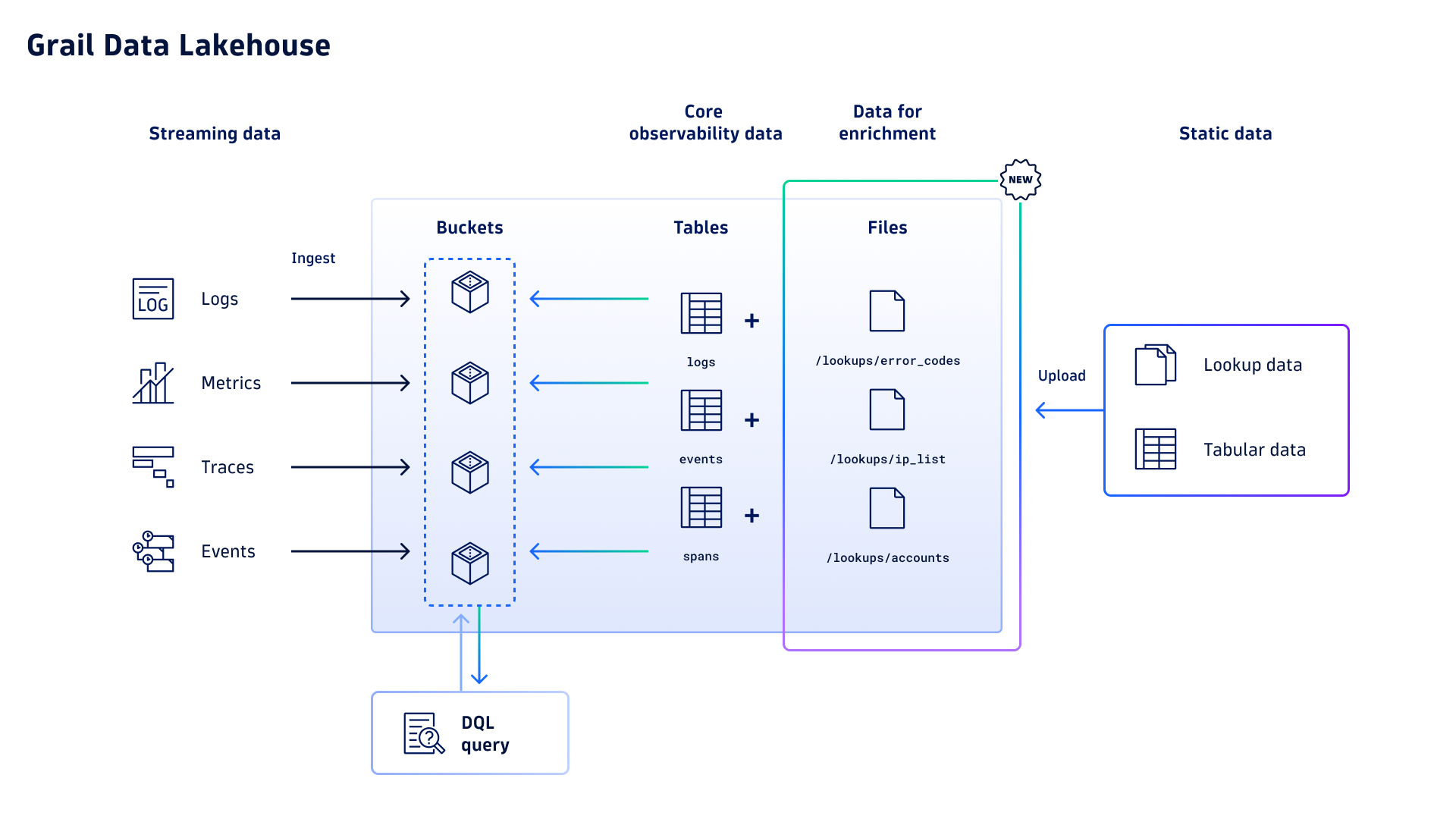
In addition to an uploaded data file, you also need to provide a parse pattern written in Dynatrace Pattern Language (DPL) that defines the structure of the lookup data.
Once uploaded, you can access lookup tables via the load command. Be aware that files are organized in a directory-like structure in Grail. To make it easier to find stored files, we’ve introduced autocomplete functionality. Just start typing and jump directly to the respective file.
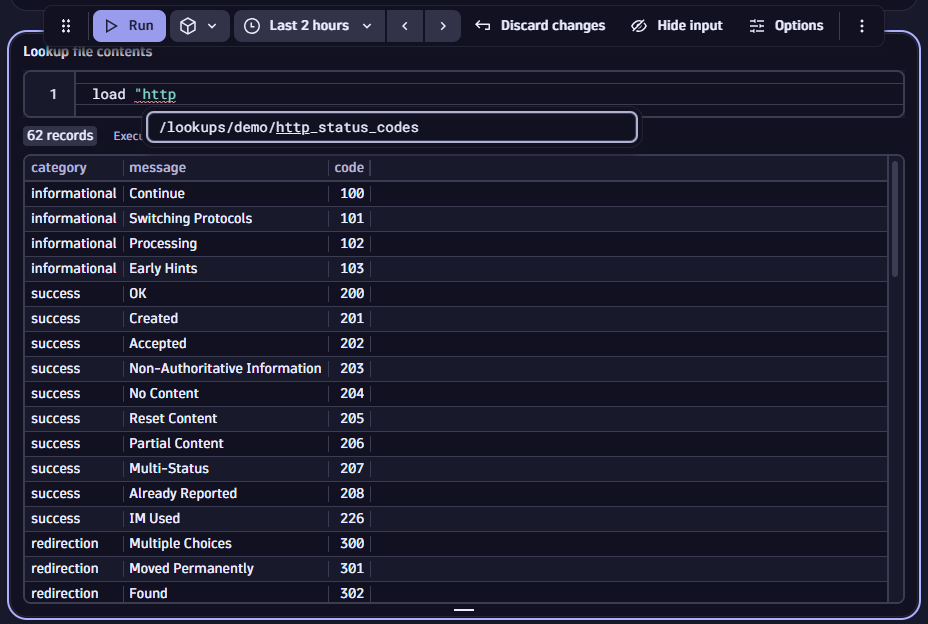
To learn more about supported file types, available attributes for data ingest, or the structure of parse patterns, please have a look at our documentation.
Practical use cases
Populating lookup data is a fantastic choice for enriching data with additional context in several scenarios:
- Mapping error codes in your logs to readable text for streamlined troubleshooting,
- Enriching IP addresses or IDs with respective account names to convert meaningless identifiers into meaningful qualifiers that speed up triage and root cause analysis.
- Accelerating security investigations with allow lists for security data.
Enrich your data with business context
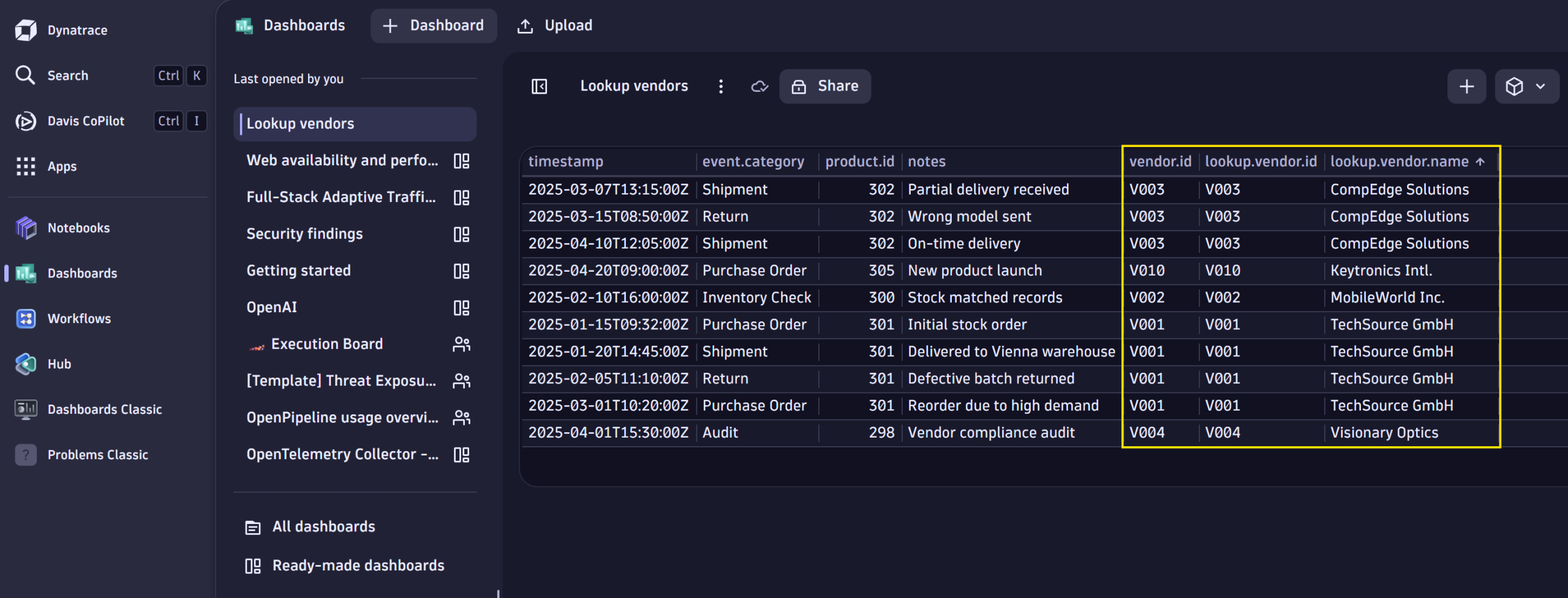
Imagine that your system’s business-relevant events logged in Grail contain product IDs, and you’d like to enrich the IDs with the vendor’s name and some additional information from an external source.
This can easily be done with lookup tables by ingesting data containing the product and vendor information. In the example below, we use the product ID as the lookup field and enrich the business events with the mapped vendor values from the lookup table.
fetch bizevents
| lookup [ load "/lookups/vendorlist" ],
    sourceField: product.id,
    lookupField: product.id
Improved insights when working with security data
In another use case, imagine a security analyst is tasked with finding suspicious login attempts to your company’s network outside of business hours. Let’s assume corporate policy allows IT engineers to work from home any day, but that is not the case for accountants. The security analyst wants to understand which usernames belong to which role. Doing this manually would mean spending considerable time cross-referencing employees with their respective roles and manually creating filters based on usernames.
Creating a lookup table containing employees’ usernames and roles could significantly streamline this work, allowing the analyst to use external data to filter and summarize more accurate results.
Filtering for malicious IP addresses
Suppose your security analyst has obtained a list of fraudulent IP addresses from a threat intelligence feed that tracks malicious IP activity. These IP addresses are associated with spam, malware, botnets, or other malicious activities that expose your applications to potential threats.
The security analyst can now store this suspicious IP list as lookup data in Grail, update it whenever necessary, use it to detect and flag requests from any listed IP addresses, and leverage the data for further analysis in Security Investigator.
Flag TOR exit nodes
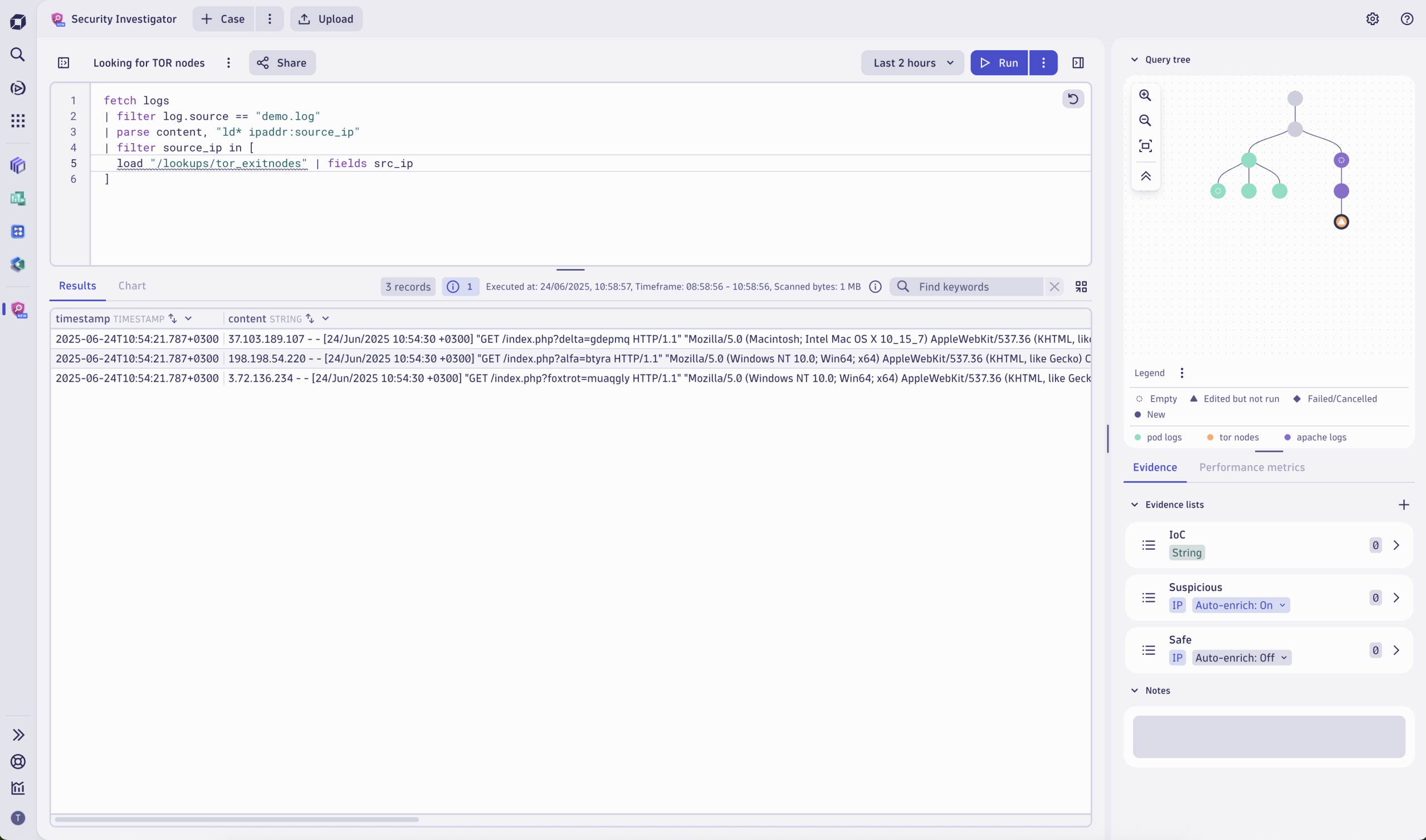
Going a step further, your security analyst can identify, flag, and track requests from TOR networks. TOR is an anonymizer that hides your tracks on the internet. By rerouting your internet activity via at least three other nodes before reaching your website, the TOR network obscures where requests originate, allowing bad actors to hide their identity and explore the internet with malicious intent.
The analyst creates a lookup table and populates it regularly with the latest list of TOR exit nodes. This data is used for further analysis, for example, in Security Investigator to detect login attempts that originate from TOR.
To utilize the Dynatrace® platform’s full power and set the TOR data in context, the analyst automates the fetching, writing, and uploading of the list of IP addresses using Workflows and visualizes the data with Dashboards.
What’s next?
Lookup tables provide a method to efficiently add context to any type of data stored in Grail. They can be used to integrate operational and transactional data, supporting your users in their day-to-day lives.
Stay tuned for further updates, such as improving our existing Snowflake Workflow Connector by adding capabilities to create and manage lookup tables, and using Security Investigator to create new lookup tables or view and filter existing tables.
Are you interested in trying out lookup tables in your own environment? This new capability is available as a public preview for all customers running the latest version of Dynatrace SaaS with an active Dynatrace Platform Subscription (DPS). It is super simple to activate; head over to our documentation to learn how.


Looking for answers?
Start a new discussion or ask for help in our Q&A forum.
Go to forum