


Protecting Personally Identifiable Information (PII) data in logs is crucial for supporting privacy and compliance. While Dynatrace OneAgent can mask data at capture/source, sensitive information like social security numbers (SSNs), payment details, IP addresses, or email addresses might still get through — especially when logs are ingested via other mechanisms such as directly using an API, via Fluent Bit, Cribl, or using the OpenTelemetry collector.
In this blog, practitioners will walk away with an in-depth understanding of how to create your own parsing rules. We’ll focus on masking/obfuscating email addresses in log events during the ingest process, leveraging Dynatrace OpenPipeline before logs are retained. Outside of this blog’s scope is the attribute-based access capability and mask on read.
Best Practice: Before we start masking data at the time of ingest, we’ll validate our configuration within a Dynatrace Notebook to prevent unwanted data loss caused by inaccurate patterns. We’ll walk through:
- Identifying patterns
- Creating a masking pipeline in OpenPipeline
- Validating the results
Step 1: Simulate logs with sensitive data
To demonstrate, we’ll work with logs containing email addresses and IP addresses. These logs use example domains and IPs (e.g., example.com and 203.0.113.x) for documentation purposes.
Here are the eight sample logs sent from various demo applications to the Dynatrace Playground:
-
2025-04-22 11:46:38 [ERROR|[203.0.113.13] |K9p8Q3xJwZrStUv4XyZ7AbC2n5M6h8T1v0L2r4 |com.example.exmplstore.security.examplePersistentTokenRepository] Can't find credentials for series marie_curie@example.com -
2025-04-22 13:50:43 [INFO |[203.0.113.112] |A1b2C3d4EfGhIjK5LmN6oPq7RsT8uVw9XyZ0 |class com.example.exmplfacades.order.exampleCheckoutLogger Checkout ABC] Receive API Request:method=placePayOrder, cartCode=302132310, customerID=freddie@example.com |com.example.exmplstore.checkout.request.PayPlaceOrderRequestDto@3d3a53d5|] -
2025-04-22 13:58:24 [INFO |||com.example.exmpl.BusinessProcessLoggingAspect] Finish Action:[ PerformSubscriptionAction ], BusinessProcessCode: [ customerRegistrationProcess-martin_luther@example.com-1745294290737], OrderCode:[ n/a ] -
2025-04-29 10:16:13 [INFO || |com.example.exmplmarketing.action.exampleSendCustomerNotificationAction] Successfully sent email forgottenPassword message for process forgottenPasswordProcess-jane_austen@example.com-1745885767984 -
2025-04-29 10:24:26 [INFO |[203.0.113.14] |M3n4P5q6RsTuVwXyZ7aBc8DeF9gHi0JkL2|com.example.exmpl.UserDeleteInterceptor] Deleting userId: cleopatra@example.com, actioned by userId: anonymous -
2025-04-29 10:24:36 [INFO |[203.0.113.19] |T2u3V4w5XyZaBc6DeF7gHi8JkL9mNo0PqR1|com.example.exmpl.AdvantageApiClient] Loyalty: Check loyalty account exist for email: leonardo_davinci@example.com , wodCorrelationId 2fee137d-915e-46fb-b390-c69aae3f150 -
2025-04-29 10:22:47 [INFO || |com.example.exmplbusproc.aop.BusinessProcessLoggingAspect] Begin Action: [ exampleAdvantageLinkEmailAction ], BusinessProcessCode: [ advantageLinkEmailProcess-albert_einstein@example.com-1745886166709], OrderCode:[ n/a ] -
10.96.152.11 - - [29/Apr/2025:10:33:43 +1000]
"GET /reminder/shakespeare@example.com/1 HTTP/1.1" 200 90
"https://www.example.com/my-account/order-details/306399901"
"Mozilla/5.0 (Macintosh; Intel Mac OS X 10_15_7) AppleWebKit/537.36
(KHTML, like Gecko) Chrome/135.0.0.0 Safari/537.36" 203.0.113.145 -
T2u3V4w5XyZaBc6DeF7gHi8JkL9mNo0PqR1 100
As you can see, all of these logs contain email addresses, which must be masked before storing in Dynatrace Grail™.
Step 2: Identify patterns in logs
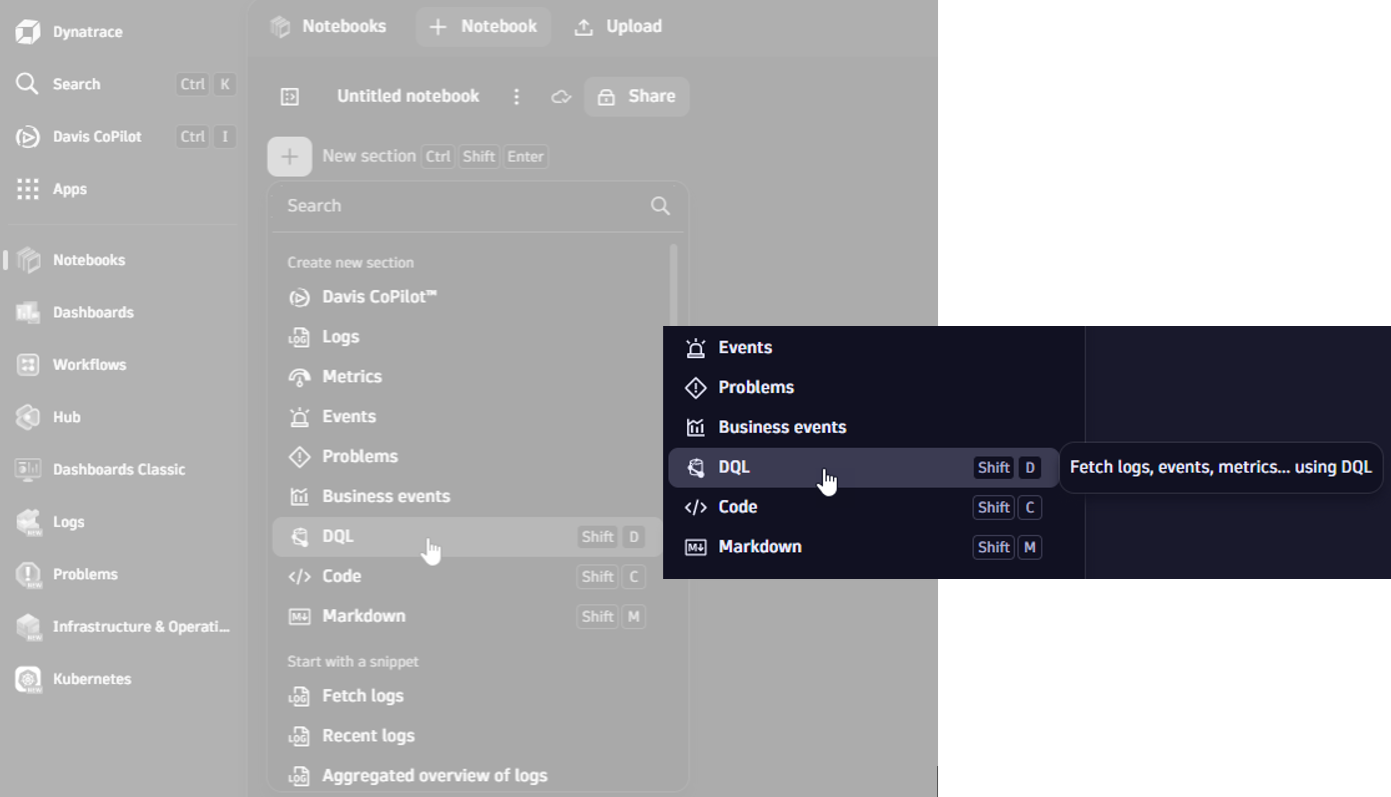
We can use the Notebooks app to query stored logs and search for log lines that contain email addresses. To do so, we create a new notebook, add a DQL section, and execute the following command:
fetch logs
| filter matchesPattern(content, "LD '@' [A-Za-z0-9'_']* '.'
[A-Za-z]* (LD | EOS)")
The second part of this command executes a pattern matching command, which makes use of the Dynatrace Pattern Language (DPL) to define the pattern and reduces the result to show only those entries that contain an email address.
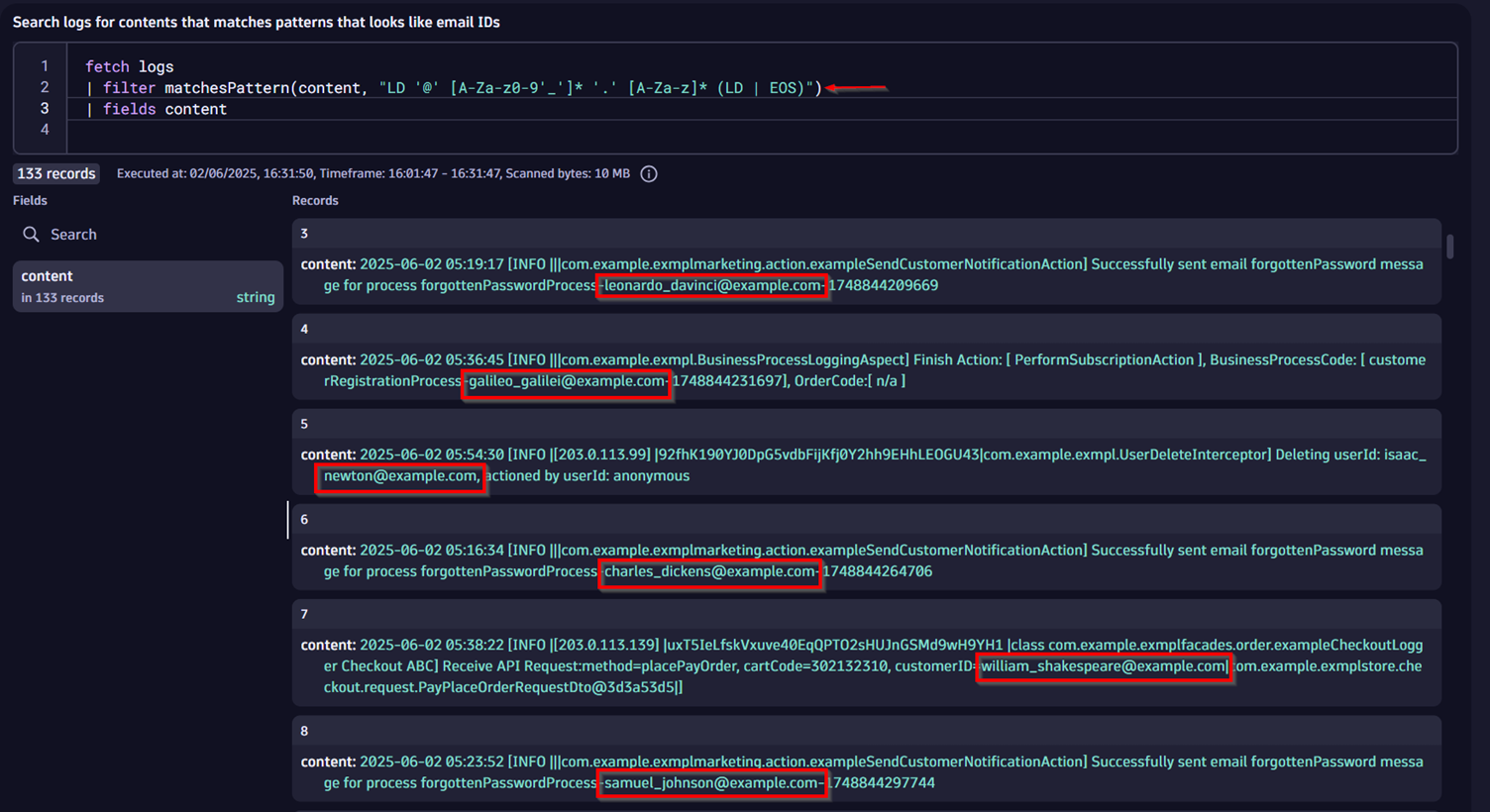
Let’s have a closer look at the DPL pattern itself:
LD '@' [A-Za-z0-9'-']* '.' [A-Za-z]* LD EOS
and break down the elements:
LD: Matches any characters (letters, digits, or others) until the next non-optional matcher (in this case, ‘@’) within the scope of a line.'@': Matches the actual @ symbol.[A-Za-z0-9'-']*: Matches zero or more letters, digits, or hyphens, forming the domain part of the email address.'.': Matches the literal “.” (e.g. in .com).[A-Za-z]*: Matches zero or more letters, representing the top-level domain. Note: If you wish to match double-dotted TLD’s like .co.uk use this pattern instead: [A-Za-z’.’]*(LD | EOS): The pattern matches either a sequence of characters (letters, digits, or others) via LD to the end of the line after the email address. However, if the last word in the log line is the email address, then optionally the EOS will match the end of string.
Step 3: Analyze logs for email address patterns
After confirming email addresses exist, we examine the log lines to identify patterns preceding them. Here are the literals just before the email addresses, found in our returned sample logs:
order confirmation email sent tofind credentials for seriescustomerID=customerRegistrationProcess-forgottenPasswordProcess-Deleting userId:Check loyalty account exist for email:advantageLinkEmailProcess-GET /reminder/
These literals will help us target the email addresses for masking.
Step 4: Check the pattern to test the process of masking the email addresses
We will now parse the email addresses and mask the local part (before the @ symbol) using Dynatrace Query Language (DQL). This is parsing at query time to test whether the pattern is valid or not. It does not change or update the unmasked data that is already stored in Grail. This step ensures that the pattern we’ll be using in the following steps with OpenPipeline are valid. To achieve this, we must open the DPL architect by selecting the 3 dots on the right hand of a row-element in the content column and select “Extract fields.”
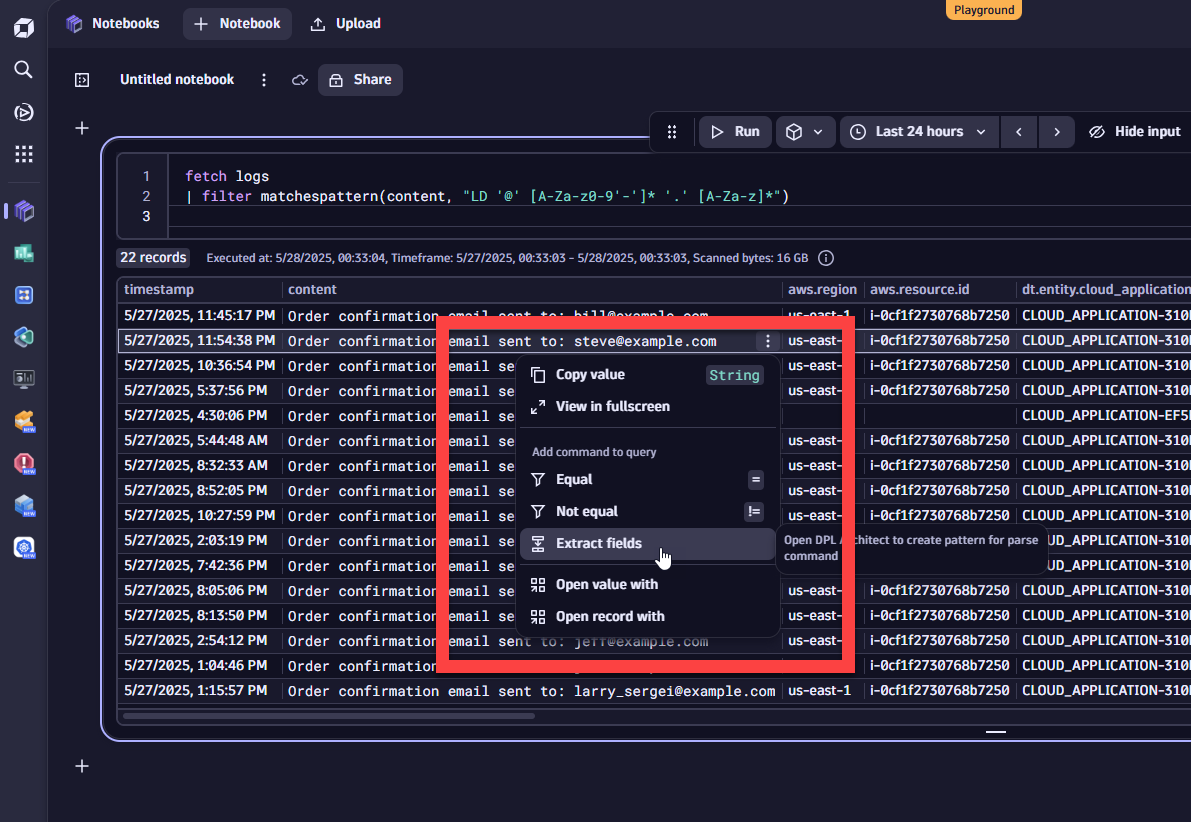
Parse the email field
We will use the following parsing pattern with DQL to extract email addresses based on the literals identified:
Pattern:
LD
(
'order confirmation email sent to' |
'find credentials for series' |
'customerID=' |
'customerRegistrationProcess-' |
'forgottenPasswordProcess-' |
'Deleting userId: ' |
'Check loyalty account exist for email: ' | 'advantageLinkEmailProcess-' |
'GET /reminder/') LD:email
Breakdown:
LD
Matches any non-whitespace characters before the literal.('Can't find credentials for series' | ...)
Matches any of the specified literals.LD:email
Captures the email address into a field named email.
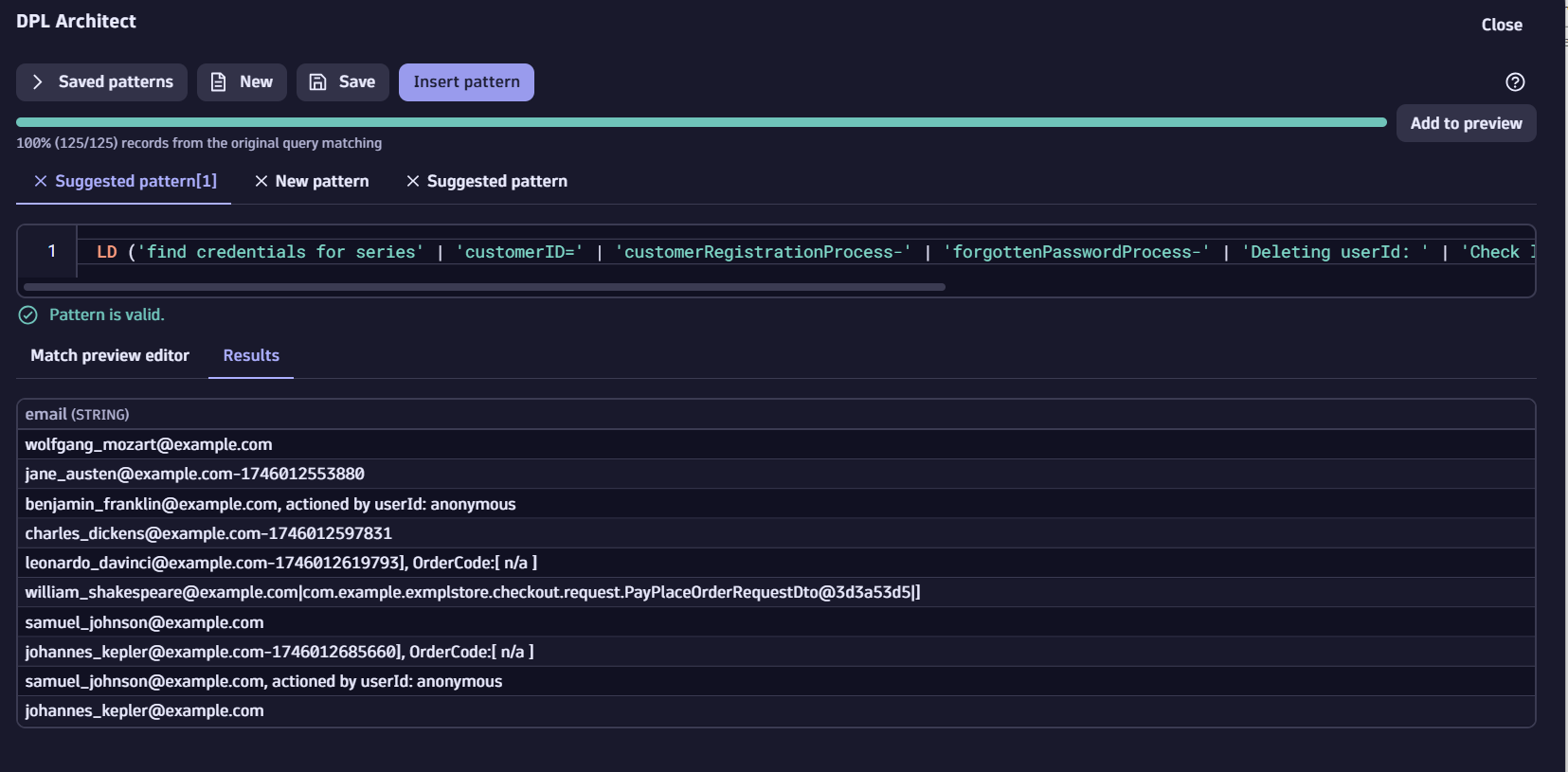
Validate the parsing rule using DPL architect in Dynatrace Notebooks by pasting the parse command (starting with LD):
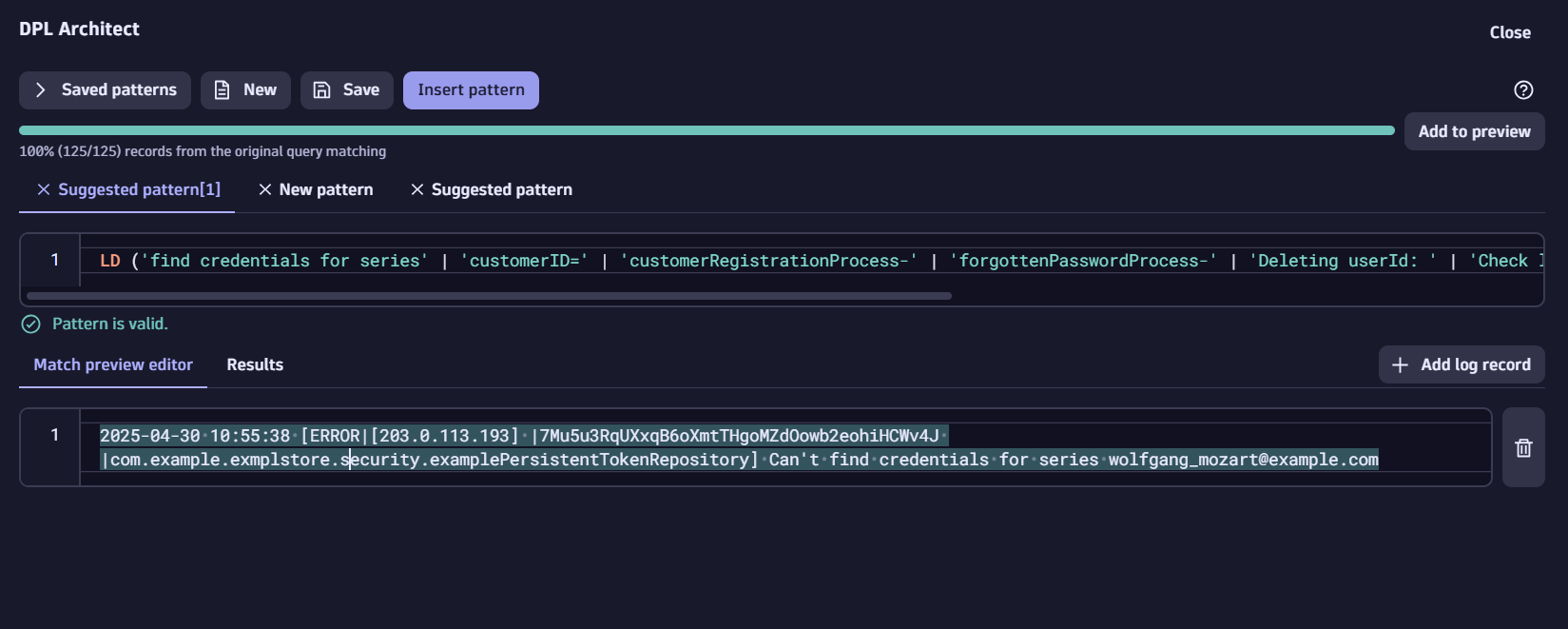
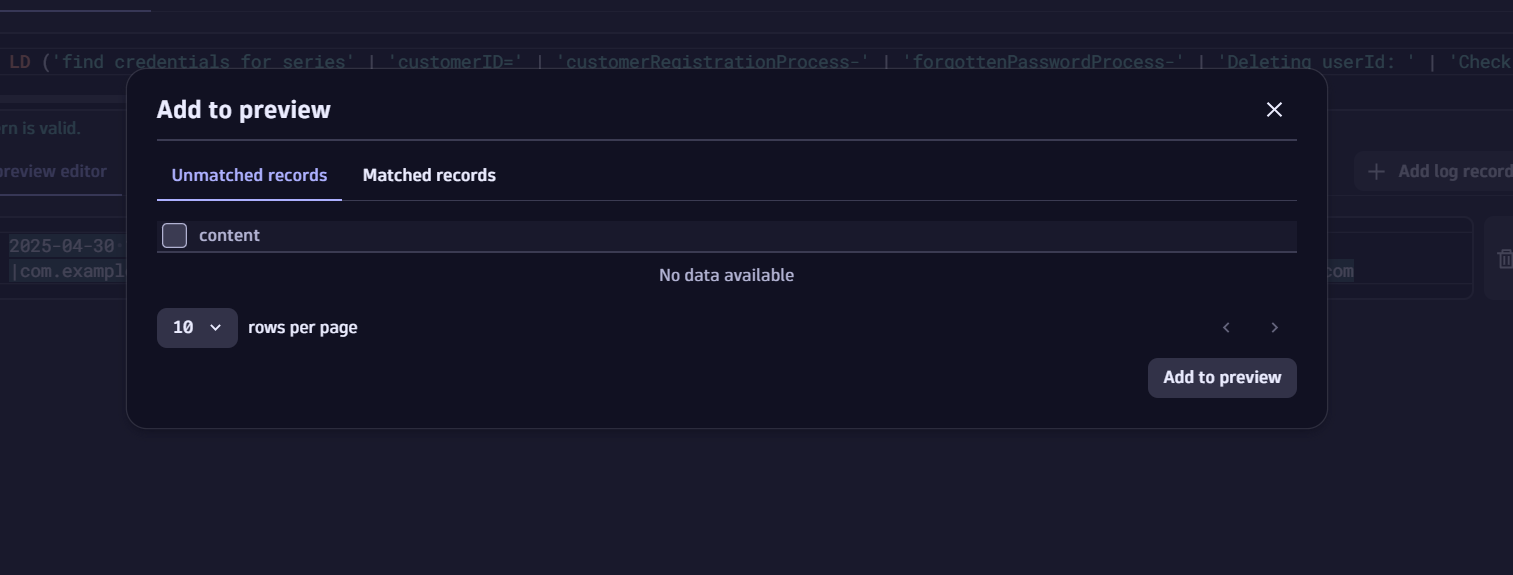
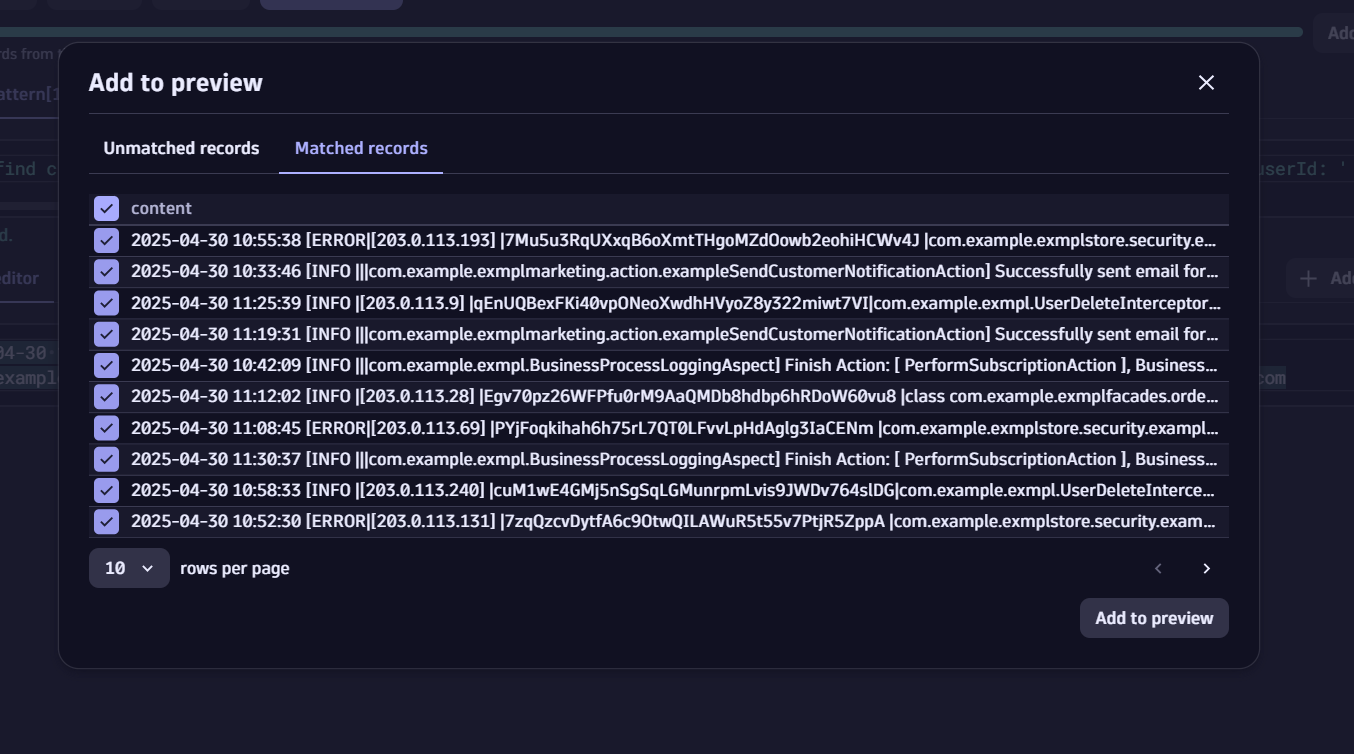
Make sure you select the ‘Add to preview’ action button to ensure there are no “Unmatched records” and all the matched records based on the previous filter can be truly passed:
Test the process of masking the email
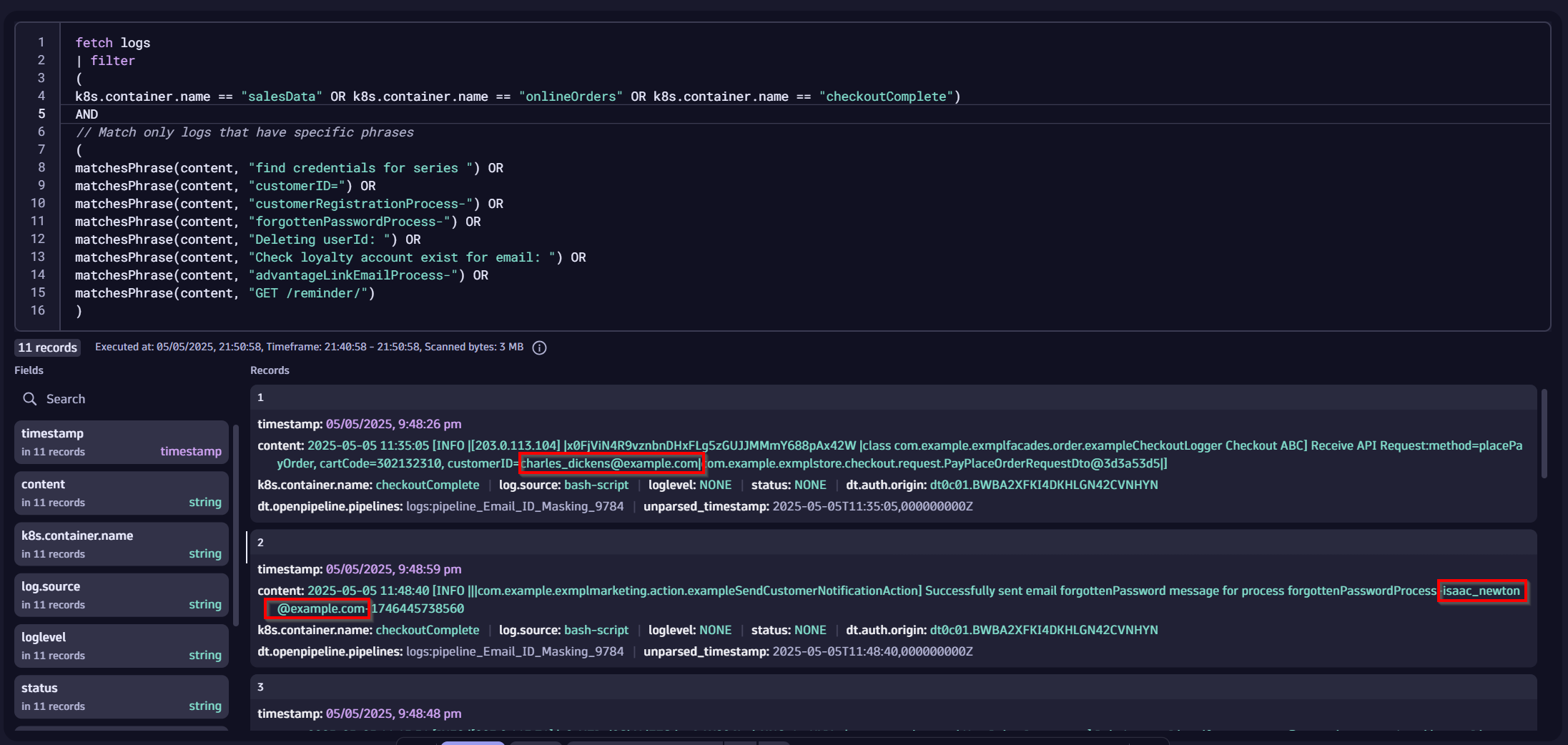
In the screenshot below, you can notice that the logs do contain unmasked email addresses:
Test replacing and obfuscating the email address in the log content with a masked value (e.g., xyz):
Add below your existing query the fieldsAdd operation:
| fieldsAdd content = replacePattern(content,

"
<<
(
 'order confirmation email sent to' |
'find credentials for series ' |
 'customerID=' |
 'customerRegistrationProcess-' |
 'forgottenPasswordProcess-' |
 'Deleting userId: ' |
 'Check loyalty account exist for email: ' |
 'advantageLinkEmailProcess-' |
 'GET /reminder/'
) LD:email
>>
'@'
",

“xyz”)
This replaces the email address (stored in the email field) with xyz in the content field.
What it does:
This DQL command modifies the content field in a Dynatrace log record by replacing specific patterns defined – email addresses in this case – with the defined string “xyz”.
Let’s have a closer look at the technical details:
- replacePattern Function:
The replacePattern function searches the content field for matches of a specified pattern and replaces them with a given string (here, “xyz”). - DPL Modifier – Lookaround:
Positive Look Behind Modifier<<
Pattern:
<<
(
'for series' |
'customerID=' |
'order confirmation email sent to' |
'customerRegistrationProcess-' |
' process forgottenPasswordProcess-' |
'userId: ' |
'Check OnePass account exist for email: ' |
'MobileApp customerRef=' |
'advantageLinkEmailProcess-' |
'GET /reminder/'
)-
- Explanation: The
<<modifier looks up to 64 bytes before the current position in the log to check for any of the specified phrases. If one is found, the pattern continues. Our pattern includes<<('customerID=' 'GET /reminder/'). If the log line containscustomerID=marie_currie@example.com, the modifier confirms thatcustomerID=appears within 64 bytes before the email address, so the match succeeds. If that phrase isn’t found in the preceding 64 bytes, the match fails. Read more about DPL modifiers in our product documentation
- Explanation: The
- Positive Look Ahead
>>
Pattern:
LD:email >> ‘@'Explanation: The>>modifier performs a look-ahead check. It ensures the pattern only matches if a specific condition appears after the current position. In this case, after capturing the local part of the email withLD:email, the pattern verifies that an@symbol follows. This confirms the captured text is indeed part of an email address. For example, take the logline “Can't find credentials for series marie_currie@example.com” The pattern first usesLD:emailto capturemarie_currieas the local part. The>> '@'check then looks ahead and confirms that@immediately follows. Because the condition is met, the match succeeds. But if the@symbol were missing (e.g.,Can't find credentials for series marie_curieexample.com), the match would fail. - Replacement:
The matched pattern (e.g.,marie_currie) is replaced with “xyz”. This masks the local part of the email address while leaving the rest of the log entry intact. For instance:- Before:
customerID=marie_currie@example.com - After:
xyz@example.com
- Before:
- fieldsAdd content = …:
The modified content (with the email local part masked) is stored back into the content field, overwriting the original value.
Additional guidance:
Follow these steps if you wish to mask the entire email address, including the domain:
If you wish to mask or extract the entire email address, you could use a pattern like below:
<<
(
'order confirmation email sent to ' |
'find credentials for series ' |
'customerID=' |
'customerRegistrationProcess-' |
'forgottenPasswordProcess-' |
'Deleting userId: ' |
'Check loyalty account exist for email: ' |
'advantageLinkEmailProcess-' |
'GET /reminder/'
)
(LD '@'[A-Za-z0-9'-'']* '.' [A-Za-z]*):email
In addition to the modifiers and pattern matching literals that were explained earlier, below is the explanation of the last line on how the breakdown of the DPL pattern language:
(LD '@'[A-Za-z0-9'-'']* '.' [A-Za-z]*):email
LD: Matches line data.'@‘: Matches the ‘@’ symbol.[A-Za-z0-9'-'']*: Matches any sequence of alphanumeric characters, hyphens, and single quotes, occurring zero or more times. Read more here.'.': Matches the ‘.’ (dot) character.[A-Za-z]*: Matches any sequence of alphabetic characters, occurring zero or more times.:email: Captures the matched data and labels it as email. This is not needed if you don’t wish to capture the email address.
Step 5: Filter logs to avoid unintended masking
To ensure we only mask logs from specific sources and pattern containers, apply additional filters to isolate those logs only.
As a best practice, you should pre-filter your logs, by applying this filter directly underneath your fetch logs statement.
Filter by Container Names:
| filter k8s.container.name == "checkout"
OR k8s.container.name == "astroshop"
OR k8s.container.name == "aks-playground"
Filter by Content Patterns:
filter
(
matchesPhrase(content, "find credentials for series ") OR
matchesPhrase(content, "order confirmation email sent to ") |
matchesPhrase(content, "customerID=") OR
matchesPhrase(content, "customerRegistrationProcess-") OR
matchesPhrase(content, "forgottenPasswordProcess-") OR
matchesPhrase(content, "Deleting userId: ") OR
matchesPhrase(content, "Check loyalty account exist for email: ") OR
matchesPhrase(content, "advantageLinkEmailProcess-") OR
matchesPhrase(content, "GET /reminder/")
)
Complete DQL Query
Here’s the full DQL query combining all steps for your reference and to copy/paste:
fetch logs
| filter
(
k8s.container.name == "checkout" OR
k8s.container.name == "astroshop" OR
k8s.container.name == "aks-playground"
)
AND
// Match only logs that have specific phrases
(
matchesPhrase(content, "find credentials for series ") OR
matchesPhrase(content, "order confirmation email sent to ") OR
matchesPhrase(content, "customerID=") OR
matchesPhrase(content, "customerRegistrationProcess-") OR
matchesPhrase(content, "forgottenPasswordProcess-") OR
matchesPhrase(content, "Deleting userId: ") OR
matchesPhrase(content, "Check loyalty account exist for email: ") OR
matchesPhrase(content, "advantageLinkEmailProcess-") OR
matchesPhrase(content, "GET /reminder/")
)
| // extract the contents just after these literals that contains the localpart/username within the email address and replace the pattern that comes after these strings.
fieldsAdd content = replacePattern(content,

"
<<
(
'order confirmation email sent to' |
'find credentials for series ' |
'customerID=' |
'customerRegistrationProcess-' |
'forgottenPasswordProcess-' |
'Deleting userId: ' |
'Check loyalty account exist for email: ' |
'advantageLinkEmailProcess-' |
 'GET /reminder/'
) LD:email
>>
'@'
",

“xyz”)
Store this query in a Dynatrace Notebook for future reference, and feel free to select the Run button to validate that the output matches your expectations.
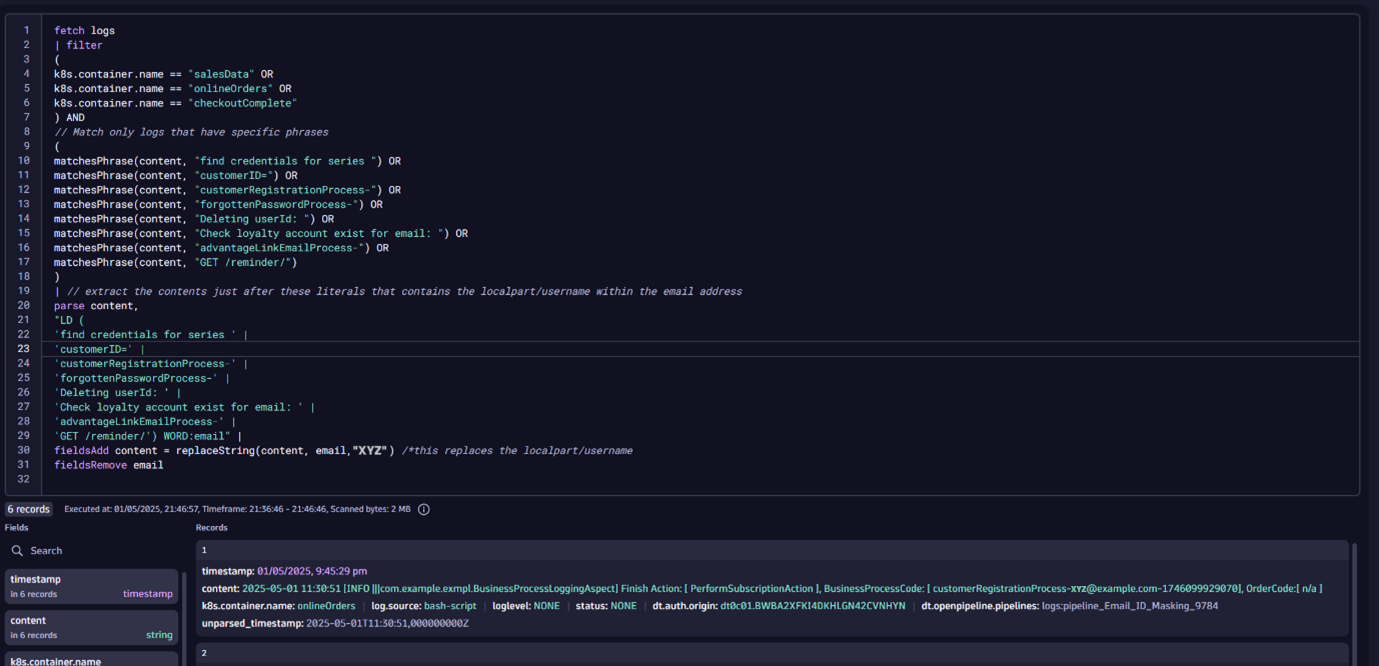
All our earlier steps did not actually mask the incoming logs, but applied our masking at read/query, and secondly, just for us as the users of the Notebook.
The Notebook and its DQL snippet simply masked the data we visualized. Although this is useful for preventing users from displaying unmasked data when automated, it is even better if logs with PII are masked during ingest time.
Now that we have validated that our pattern works, we can use OpenPipeline to ensure that any log matching the DQL processor rule will undergo a series of processes that transform the log events during the ingest process.
Step 6: Set up OpenPipeline for real-time masking
Let’s configure OpenPipeline to mask email addresses at log ingestion.
- Launch OpenPipeline in Settings app: Navigate to OpenPipeline using search or the CTRL+K shortcut. Then select Logs from the OpenPipeline menu.
- Create a New Pipeline:
- Go to Pipelines and create a new pipeline.
- Provide a meaningful name (e.g., “Mask Email Addresses”).
- In the Processing tab, add a DQL processor.
- Configure the DQL Processor:
- Name the processor (e.g., “mask email address in astroshop OR checkout OR aks-playground”).
- Replace the default matching condition true with our patterns defined:
-
( k8s.container.name == "astroshop" OR k8s.container.name == "checkout" OR k8s.container.name == "aks-playground" ) AND // Match only logs that have specific phrases ( matchesPhrase(content, "order confirmation email sent to ") OR matchesPhrase(content, "find credentials for series ") OR matchesPhrase(content, "customerID=") OR matchesPhrase(content, "customerRegistrationProcess-") OR matchesPhrase(content, "forgottenPasswordProcess-") OR matchesPhrase(content, "Deleting userId: ") OR matchesPhrase(content, "Check loyalty account exist for email: ") OR matchesPhrase(content, "advantageLinkEmailProcess-") OR matchesPhrase(content, "GET /reminder/") ) - Define what action should be applied when the condition matches, by defining the DQL processor:
fieldsAdd content = replacePattern(content,

"
<<
(
 'find credentials for series ' |
 'order confirmation email sent to ' |
 'customerID=' |
 'customerRegistrationProcess-' |
 'forgottenPasswordProcess-' |
 'Deleting userId: ' |
 'Check loyalty account exist for email: ' |
 'advantageLinkEmailProcess-' |
 'GET /reminder/'
) LD:email
>>
'@'
",

“xyz”)
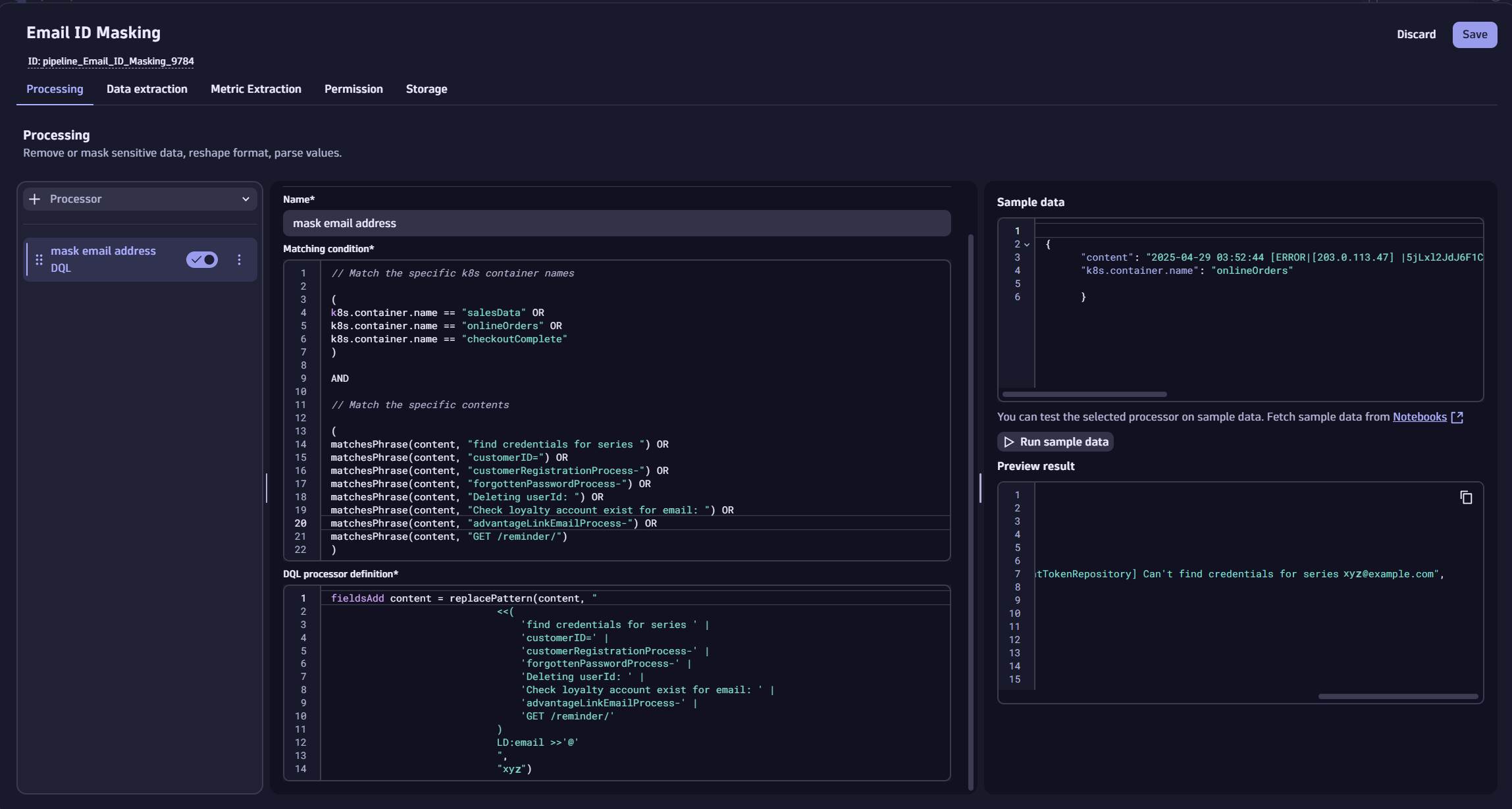
While it is suggested to test your new masking with sample data, you can alternatively input ‘example’ as text and select to save the processor and pipeline, as we have validated them earlier in our Notebook.
4. Set up and define Dynamic Routing:
- Select the Dynamic routing tab
- Create a new Dynamic route named “Email ID masking for specific container names.”
- Use the same condition as the matching condition before.
- Connect the route to the pipeline you’ve just created.
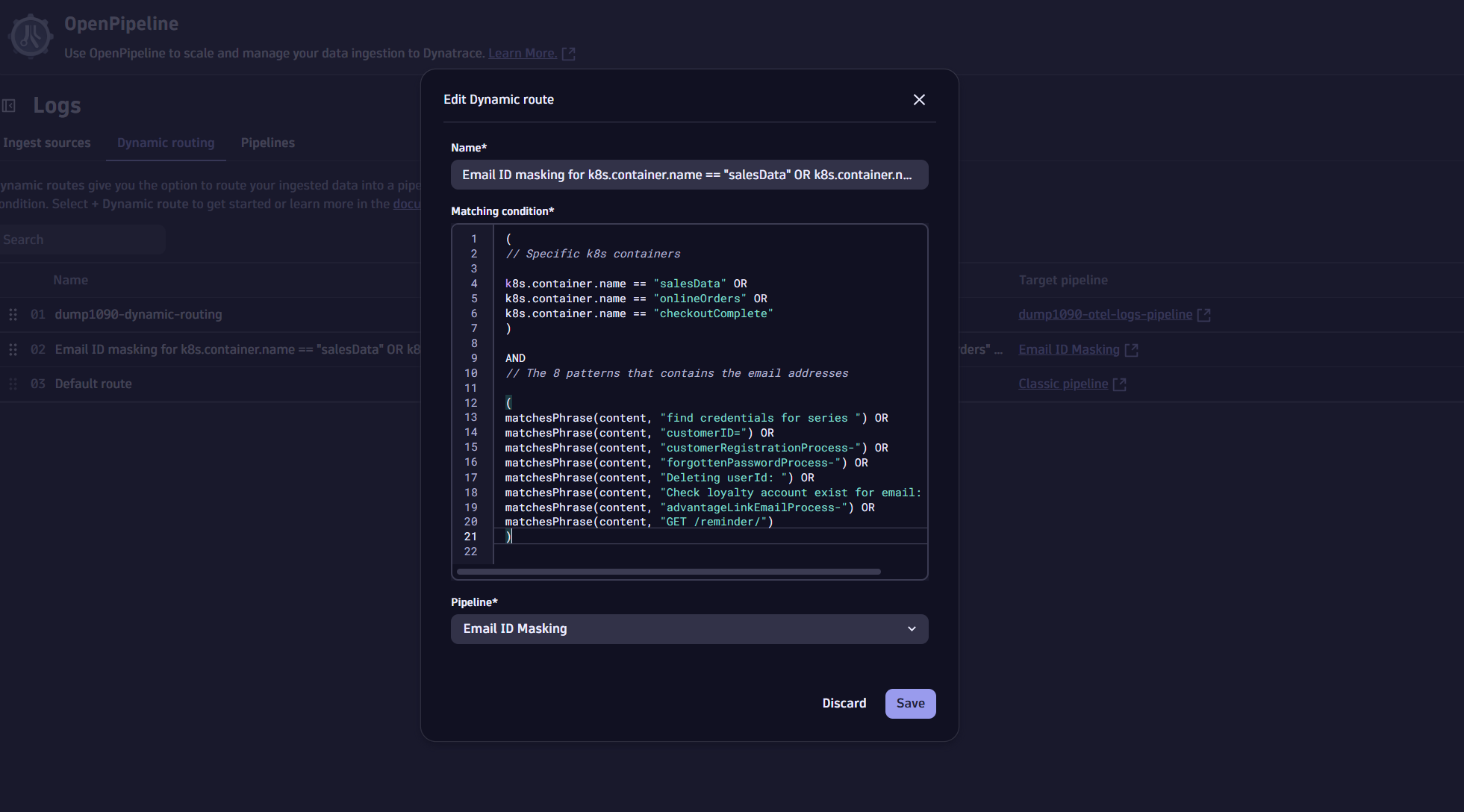
Once configured and saved, OpenPipeline will automatically mask email addresses during ingestion.
Step 7: Validate the masking
To confirm the email addresses are masked:
- Re-run the DQL query in your Dynatrace Notebook, but this time without the parsing.
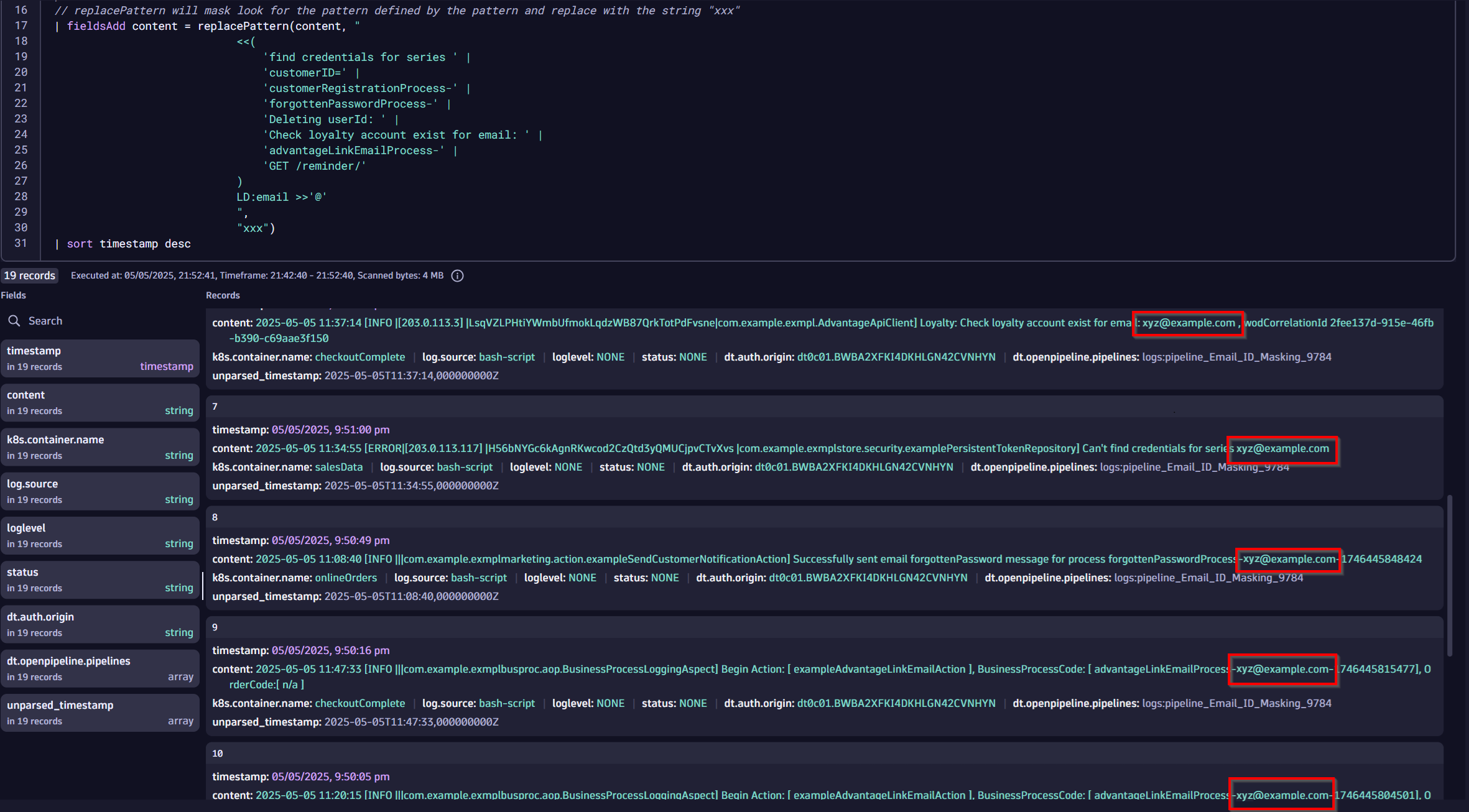
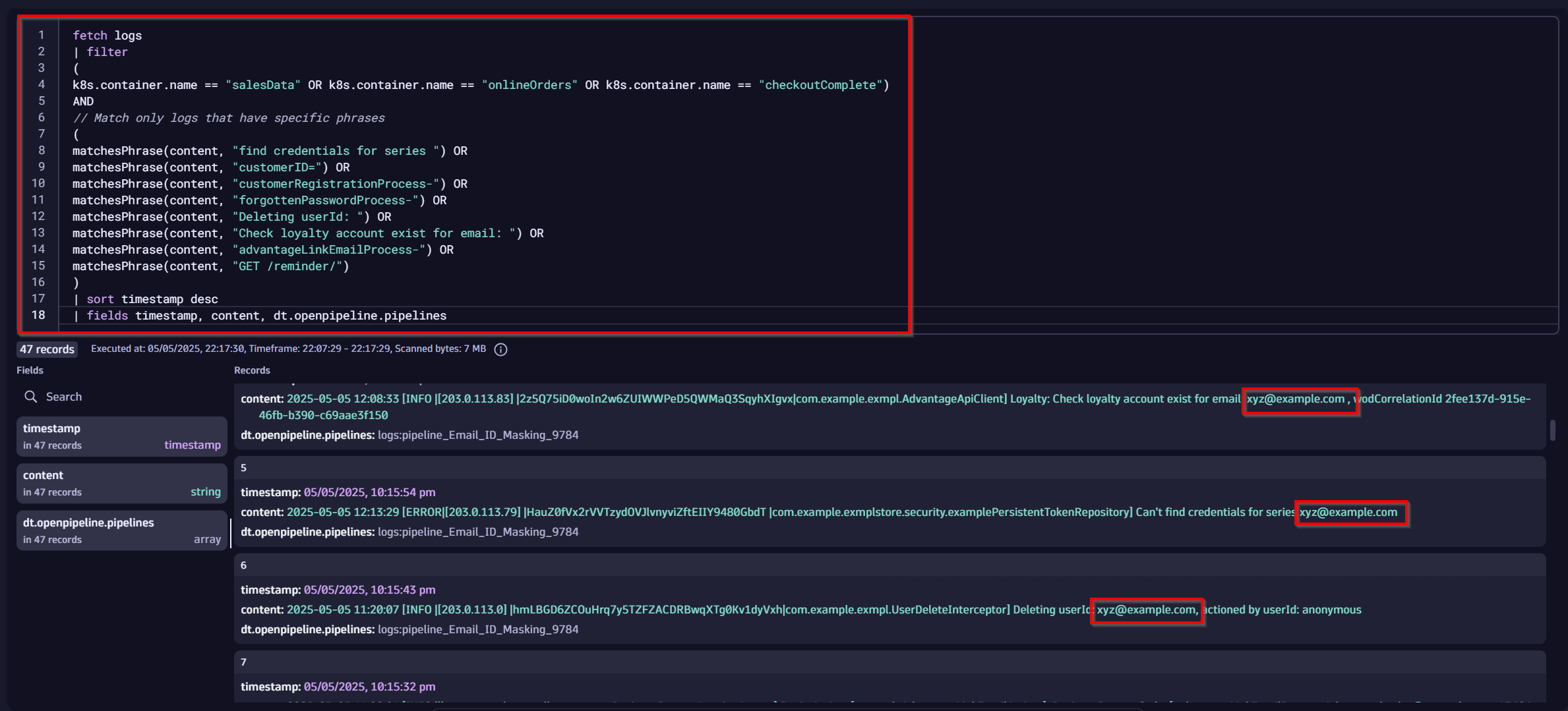
- Check the content field in the logs to ensure email addresses are replaced with xyz.
For example, marie_currie@example.com should now appear as xyz@example.com.
We can verify this by looking for these logs, and we can observe that the email addresses have been fully masked without any parsing at query time. Additionally, you can notice that the logs have the dt.openpipeline.pipelines attribute attached with the pipeline that was used during ingest time. This also confirms that the log was processed in that pipeline.
Conclusion
In this blog, we used email masking at ingest to demonstrate how to effectively obfuscate various types of sensitive data in logs using OpenPipeline, protecting sensitive data in real-time during the ingest process. By leveraging OpenPipeline’s powerful DQL-based processing and dynamic routing capabilities, you can precisely target specific Kubernetes containers or just any log source with patterns to enhance data privacy and security.
Take the next step
Explore OpenPipeline’s advanced features to:
- Mask sensitive data like SSNs, IDs, and more
- Streamline log management workflows with dynamic routing
- Build custom pipelines in Dynatrace to control your log data
Streamline Compliance
For comprehensive data-subject rights management, consider the Sensitive Data Center. app. Efficiently manage end-user personal data requests in Grail, with support for regulations like GDPR and CCPA.
…
Addendum: Exploring this approach in the Dynatrace Playground tenant:
A sample dataset, preloaded with tailored pattern matching and masking for the following steps and explanations, is available in the Dynatrace Playground tenant within this Dynatrace Notebook for hands-on exploration.
The individual steps can also be observed in the playground tenant with the logs ingested from the astroshop demo, while unfortunately, you lack the permissions to configure new pipelines and processors in Playground tenant.
If you look to test this within your personal tenant or a free trial tenant without actual logs containing PII, or running Astroshop yourself, you can download a copy of this Notebook or test with the pattern below, using the data command to generate sample data in a Dynatrace Notebook.
data
record(content = "2025-04-22 11:46:38 [ERROR|[203.0.113.13] |K9p8Q3xJwZrStUv4XyZ7AbC2n5M6h8T1v0L2r4 |com.example.exmplstore.security.examplePersistentTokenRepository] Can't find credentials for series marie_curie@example.com", log.source = "bash-script"),
record(content = "2025-04-22 13:50:43 [INFO |[203.0.113.112] |A1b2C3d4EfGhIjK5LmN6oPq7RsT8uVw9XyZ0 |class com.example.exmplfacades.order.exampleCheckoutLogger Checkout ABC] Receive API Request:method=placePayOrder, cartCode=302132310, customerID=freddie@example.com|com.example.exmplstore.checkout.request.PayPlaceOrderRequestDto@3d3a53d5|", log.source = "bash-script"),
record(content = "2025-04-22 13:58:24 [INFO |||com.example.exmpl.BusinessProcessLoggingAspect] Finish Action: [ PerformSubscriptionAction ], BusinessProcessCode: [ customerRegistrationProcess-martin_luther@example.com-1745294290737], OrderCode:[ n/a ]", log.source = "bash-script"),
record(content = "2025-04-29 10:16:13 [INFO |||com.example.exmplmarketing.action.exampleSendCustomerNotificationAction] Successfully sent email forgottenPassword message for process forgottenPasswordProcess-jane_austen@example.com-1745885767984", log.source = "bash-script"),
record(content = "2025-04-29 10:24:26 [INFO |[203.0.113.14] |M3n4P5q6RsTuVwXyZ7aBc8DeF9gHi0JkL2|com.example.exmpl.UserDeleteInterceptor] Deleting userId: cleopatra@example.com, actioned by userId: anonymous", log.source = "bash-script"),
record(content = "2025-04-29 10:24:36 [INFO |[203.0.113.19] |T2u3V4w5XyZaBc6DeF7gHi8JkL9mNo0PqR1|com.example.exmpl.AdvantageApiClient] Loyalty: Check loyalty account exist for email: leonardo_davinci@example.com , wodCorrelationId 2fee137d-915e-46fb-b390-c69aae3f150", log.source = "bash-script"),
record(content = "2025-04-29 10:22:47 [INFO |||com.example.exmplbusproc.aop.BusinessProcessLoggingAspect] Begin Action: [ exampleAdvantageLinkEmailAction ], BusinessProcessCode: [ advantageLinkEmailProcess-albert_einstein@example.com-1745886166709], OrderCode:[ n/a ]", log.source = "bash-script"),
record(content = "10.96.152.11 - - [29/Apr/2025:10:33:43 +1000] \"GET /reminder/shakespeare@example.com/1 HTTP/1.1\" 200 90 \"https://www.example.com/my-account/order-details/306399901\" \"Mozilla/5.0 (Macintosh; Intel Mac OS X 10_15_7) AppleWebKit/537.36 (KHTML, like Gecko) Chrome/135.0.0.0 Safari/537.36\" 203.0.113.145 - T2u3V4w5XyZaBc6DeF7gHi8JkL9mNo0PqR1 100", log.source = "bash-script")

| filter matchesPattern(content, "LD '@' [A-Za-z0-9'_']* '.' [A-Za-z]* (LD | EOS)")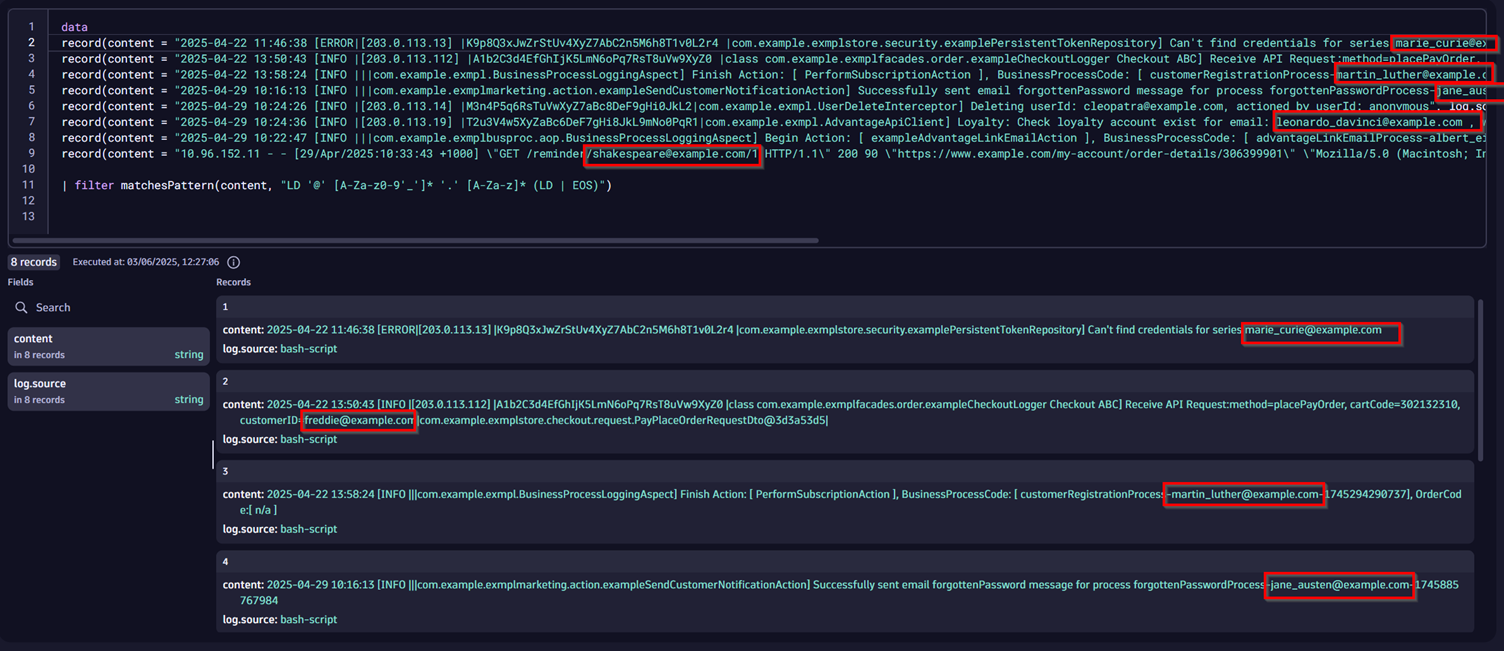


Looking for answers?
Start a new discussion or ask for help in our Q&A forum.
Go to forum