


In today’s cloud-native environments, having real-time observability data at your fingertips is crucial. By integrating Kiro powered by AWS with Dynatrace, you can leverage powerful AI-assisted monitoring and troubleshooting capabilities directly in your development workflow.
Kiro—which recently reached general availability—helps developers by bringing structure to AI coding with spec-driven development. When a developer needs to fix an issue, investigate an error, or optimize resource usage, it’s crucial they can analyze what happened just before the issue occurred and delve deeper into the infrastructure utilization of your applications in your cloud or container environment.
Unlock development productivity with live production insights
Developers typically face restricted access to production environments, being fully dependent on site reliability engineers (SREs) or operations teams to detect and report issues post-deployment, and provide them with the necessary information to fix an issue. This segmented workflow can result in delayed problem identification and resolution, an increased risk of failures in production, and reduced efficiency throughout the development lifecycle.
By connecting Dynatrace with Kiro, developers can access real-time insights from production environments, gain contextual information down to the root cause of an incident, and receive remediation proposals—all within their Kiro environment.
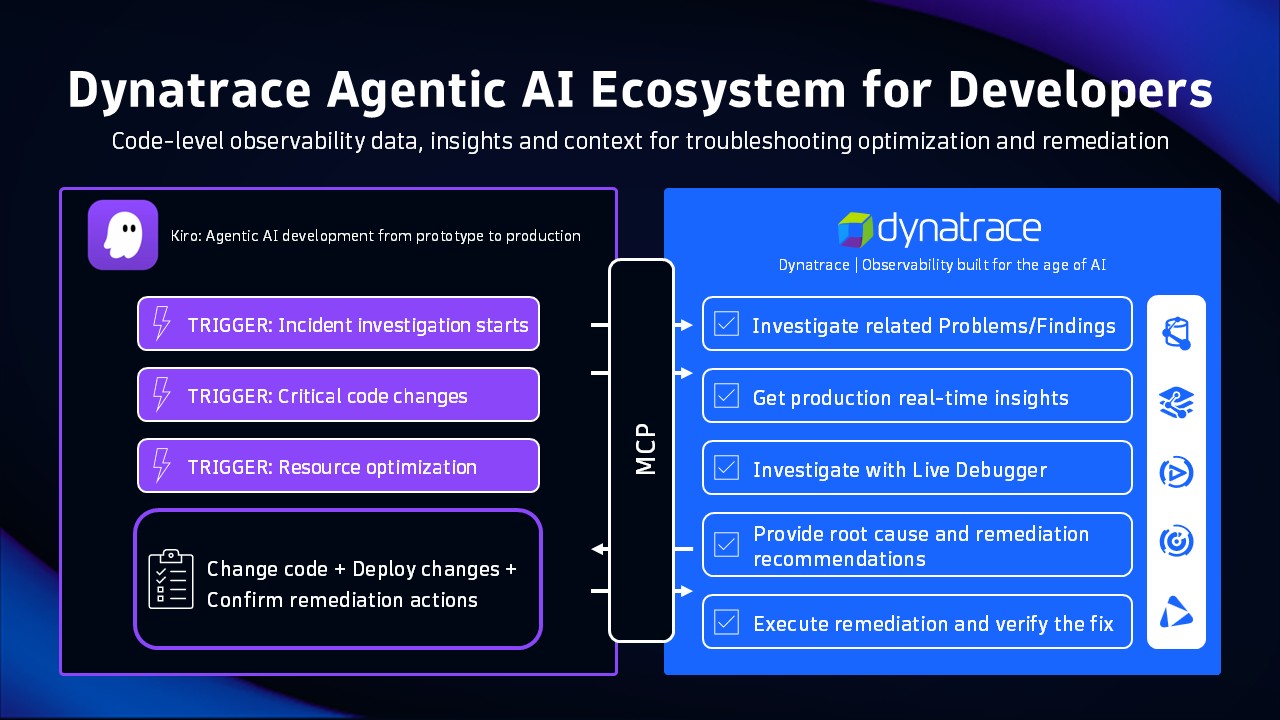
Kiro has a built-in Model Context Protocol (MCP) client that can be used to extend its capabilities to communicate securely and flexibly with external data sources and tools such as Dynatrace.
Let’s dig deeper into how to leverage this capability and provide Dynatrace’s unique insights to your development teams.
Step-by-step integration guide
Prerequisites
- You’ll need a Dynatrace account. If you don’t already have one, you can start a free 15-day trial.
- Kiro must be installed on your system.
- You must have basic familiarity with AWS services and the Dynatrace platform.
Prepare integration with Dynatrace
First, you need to create a Dynatrace Platform Token, which is used to define Kiro access, and then add the required permissions for the Dynatrace MCP server.
Configure Kiro MCP Settings
The Kiro MCP configuration is managed through a JSON file. The interface supports two levels of configuration:
- User-level: ~/.kiro/settings/mcp.json applies to all workspaces
- Workspace-level: .kiro/settings/mcp.json is specific to the current workspace
You can apply the configuration using two different methods:
Method 1: Open the command palette (use Cmd + Shift + P on Mac or Ctrl + Shift + P on Windows/Linux), search for MCP and select Kiro: Open workspace MCP config (JSON) or Kiro: Open user MCP config (JSON), depending on whether or not you want to configure the settings for the workspace or user level.
Method 2: Alternatively, you can use the Kiro Panel. Open Kiro and select the Kiro ghost icon to open the left-side panel. Locate the MCP SERVERS section, select Open MCP Config, and then start configuring the connection for the Dynatrace MCP Server.
Dynatrace specific settings
Note: Only add one of the following configurations, depending on whether you want to use the remote MCP server or the local MCP server. You can’t use both at the same time.
Using the remote MCP server
Use the following configuration. Replace $TENANT_ID with your Dynatrace environment ID. (You can find your environment ID in the URL of your Dynatrace environment — for example, https://<ENVIRONMENT_id>.apps.dynatrace.com/ui.) Then, replace $DT_PLATFORM_TOKEN with the ID of the Dynatrace platform token you created previously (for example, dt0s16.XXXXX).
{
"mcpServers":
  {
    "dynatrace": {
      "type": "http",
      "url": "https://$TENANT_ID.apps.dynatrace.com/platform-reserved/mcp-gateway/v0.1/servers/dynatrace-mcp/mcp",
      "headers": {
        "Authorization": "Bearer $DT_PLATFORM_TOKEN"
      },
      "tools": ["*"]
      }
  }
}
Connect the local MCP server
The configuration for the local Dynatrace MCP server can be added to the Kiro IDE using one-click installation or by following the manual configuration as shown below. Don’t forget to replace $TENANT_ID with the ID of your tenant.
{
  "mcpServers": {
    "dynatrace-mcp-server": {
      "command": "npx",
      "args": ["-y", "@dynatrace-oss/dynatrace-mcp-server@latest"],
      "env": {
        "DT_ENVIRONMENT": "https://$TENANT_ID.apps.dynatrace.com"
      }
    }
  }
}

Verify the integration
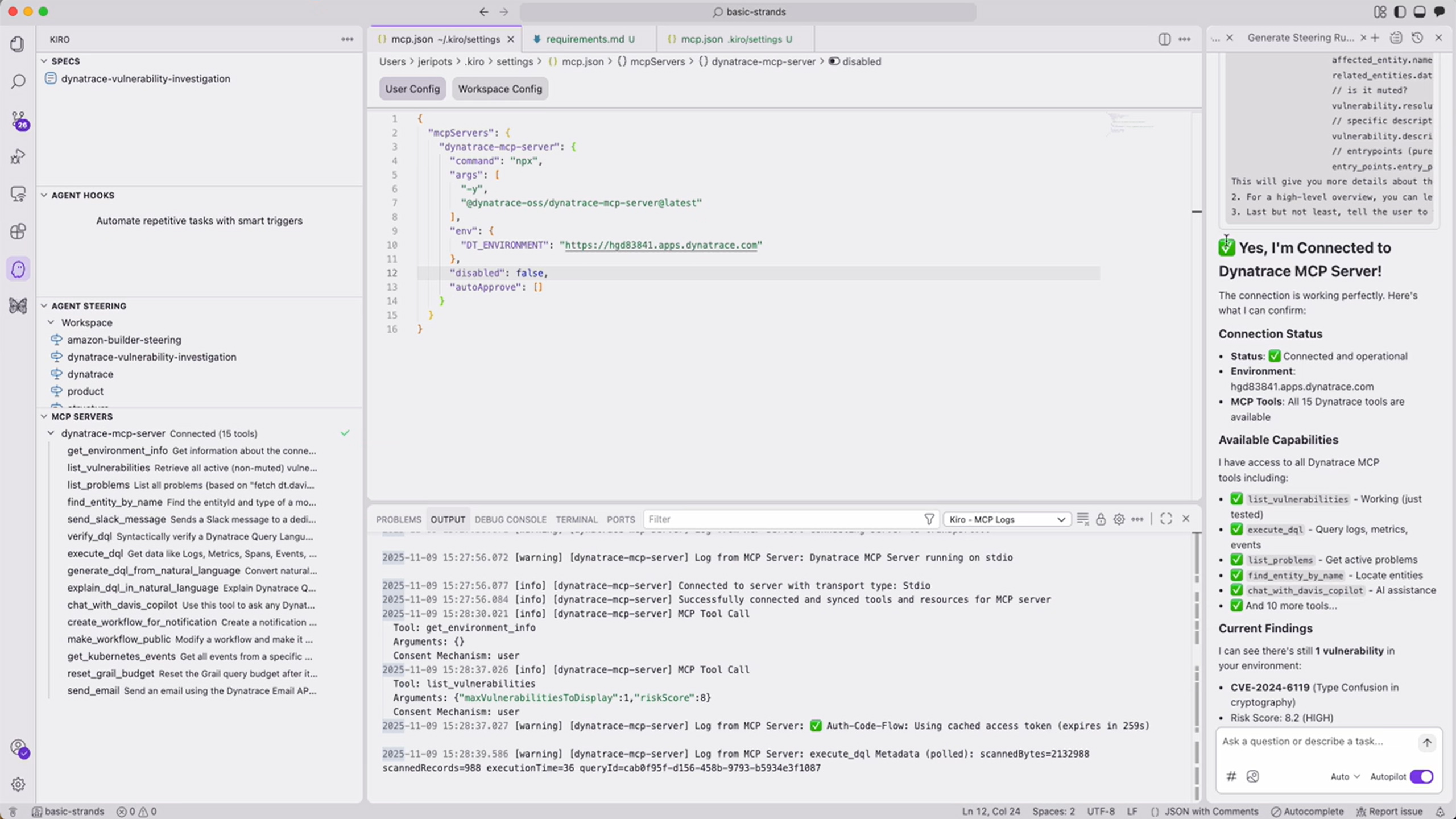
Once configured, you can use the Kiro chat to interact with Dynatrace through natural language conversations. Simply tell Kiro what you need, whether it’s investigating a critical incident, gaining insights into metrics, logs, or traces from your application, analyzing dependencies, or setting up automated alerts.
In the screenshot below, you can see in the lower left which capabilities are provided by the Dynatrace MCP Server. Beyond the standardized actions, such as listing active vulnerabilities or problems, querying data stored in Dynatrace, or creating a workflow, you can also interact with Davis CoPilot®, the Dynatrace natural language assistant.
Conclusion
This integration isn’t just another feature; it’s a fundamental shift in how Dynatrace integrates with your development workflow. It brings together the power of Kiro’s AI capabilities with the Dynatrace unified observability platform, allowing developers to access critical monitoring data and gain a real-time understanding of their production environments via natural language interaction.
Spend less time context switching and more time creating value for your customers. Start today and benefit from real-time insights, precise root cause analysis based on causal understanding or improved troubleshooting capabilities, and enhanced development workflows.
Explore how Dynatrace can integrate seamlessly into your development landscape using our remote MCP Server. If you’re interested in learning more about Kiro, have a look at their launch blog post or visit the documentation and dig deeper into how to connect with MCP Servers.


Looking for answers?
Start a new discussion or ask for help in our Q&A forum.
Go to forum